Device Management
Note:
The following sections under the Devices tab of the Enterprise Portal are only available in Account context.
- Devices
- Upload Devices
- Locations
- Location Attributes
Overview
The CMP is built to manage the connectivity of all the physical "Things" deployed within a Company's Internet of Things portfolio. The Enterprise Portal refers to Things as Devices, and allows you to define Device Types, assign SIM Cards, and Locations to the Devices and add custom Tags.
Device Types
Before a Device can be added, at least one Device Type must be defined.
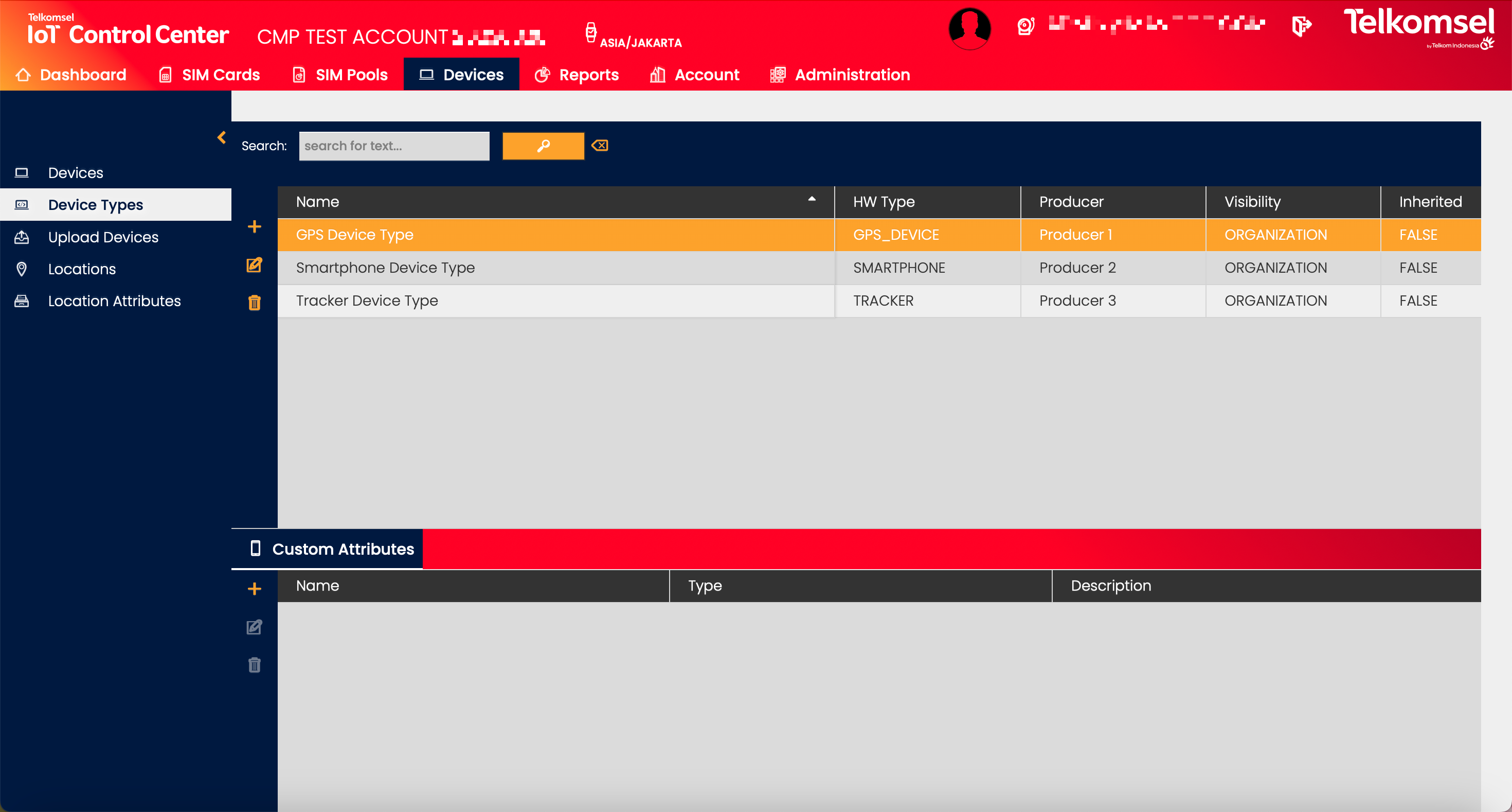
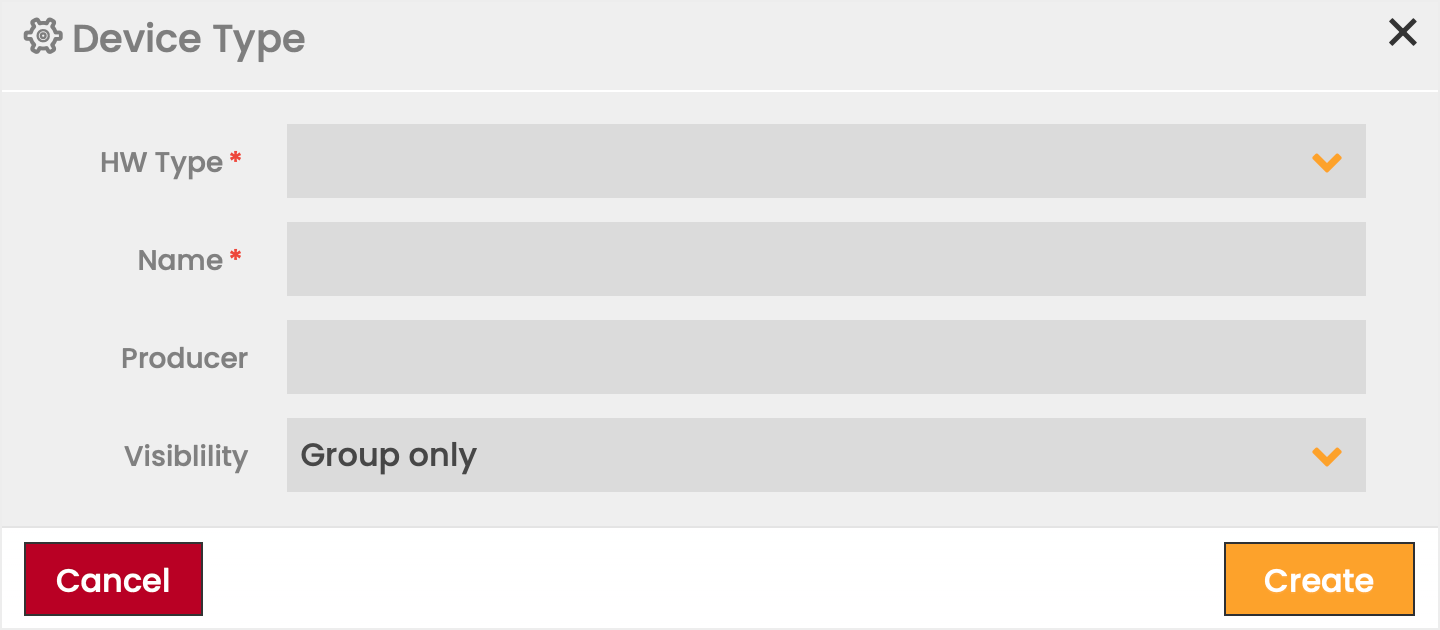
Create a Device Type
To create a Device Type:
- Select the Device Types subtopic.
- Click on the Add
 icon.
icon. - Define the information fields for the new Device Type.
Fields marked by a red asterisk are mandatory. - Click Create to save the Device Type.
Field | Description |
|---|---|
HW Type | A series of predefined families of Devices is provided. |
Name | Name of the Device Type (e.g. model name or version). |
Producer | Specifies the manufacturer of the Device (e.g. Apple, Samsung). |
Visibility | Whether only the currently selected Group will be able to see the Device Type or also Groups that are on lower hierarchical levels. |
Edit or Delete a Device Type
- Click the Edit
 icon to modify the settings seen in the Device Type creation.
 - Click the Delete
 icon to delete a Device Type.
Device Type Custom Attributes
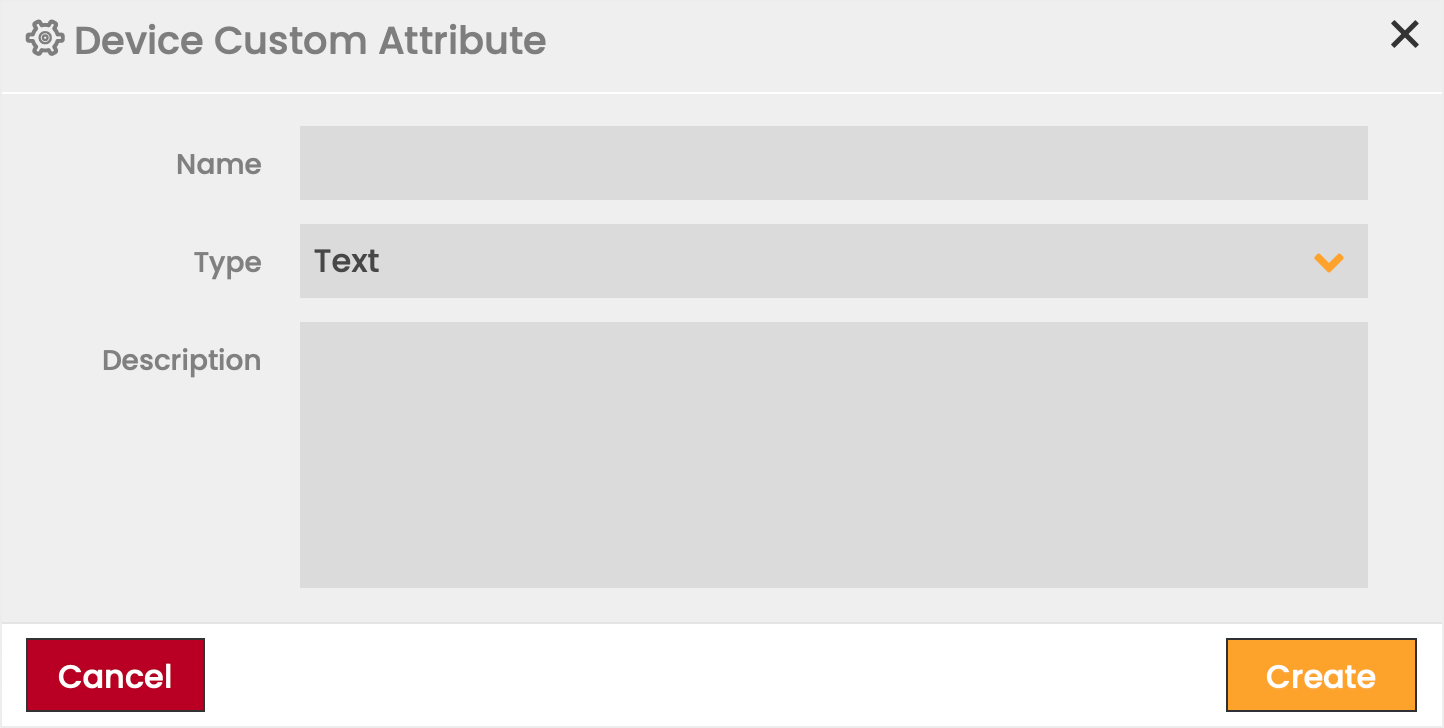
In a similar manner as for SIM Cards, Custom Attributes can be assigned to Device Types as well.
To create a Device Type Custom Attribute:
- Select a Device Type from the grid.
- Click on the Add Custom Attribute icon in the Custom Attributes split-screen.
- Define the information fields for the new Custom Attribute.
- Click Create to save the Custom Attribute.
To edit or delete a Device Type Custom Attribute:
- Click the Edit icon in the Custom Attributes split-screen to modify the settings seen in the Custom Attribute creation.
- Click the Delete icon in the Custom Attributes split-screen to delete a Custom Attribute.
The Device Grid
The list of Devices displayed in the Device Grid depends on the selected Context. Use the context switch menu next to the logo in the top left corner of the screen to change the context.
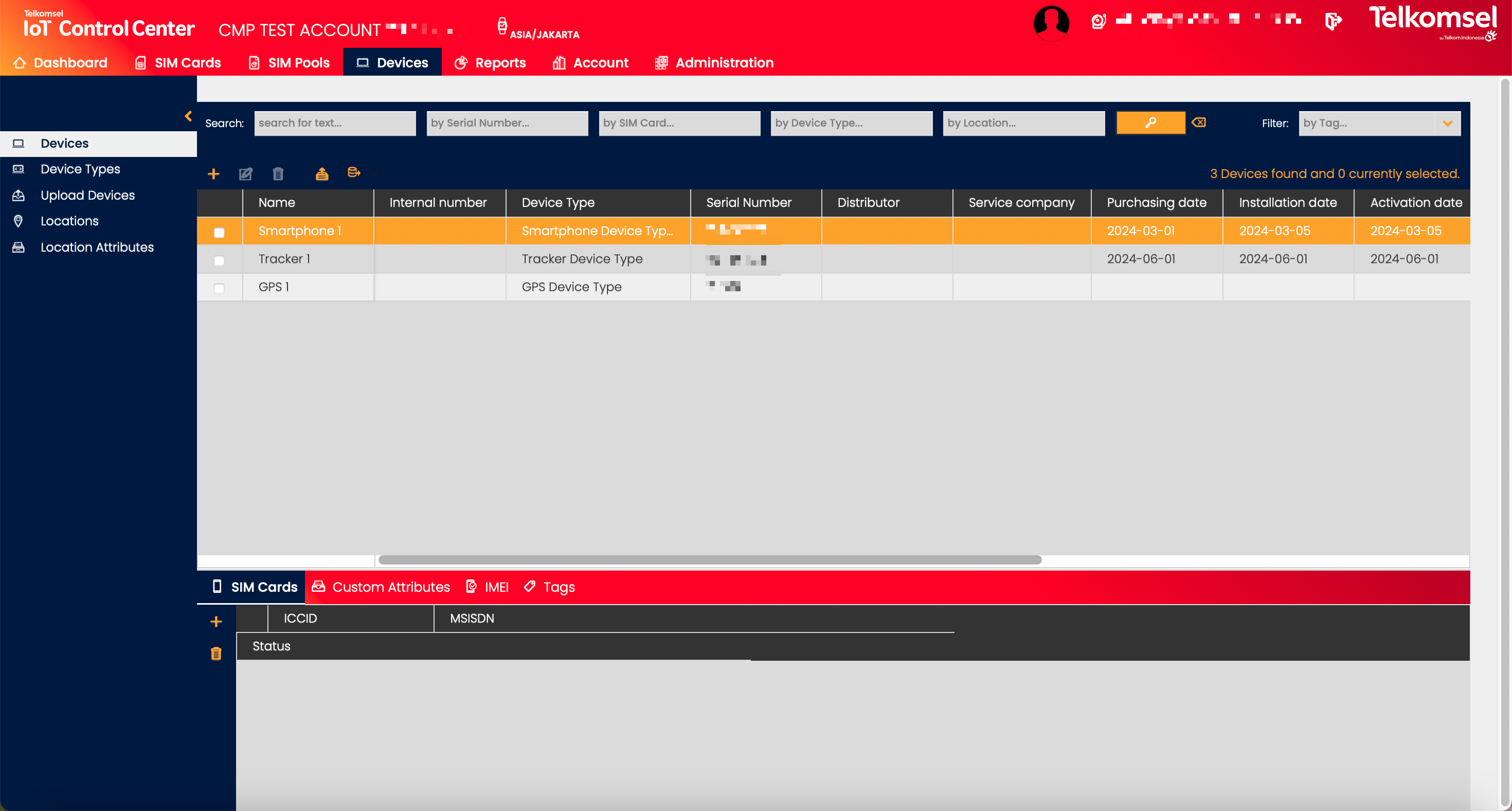
Search for a Device
The search option of the Devices module allows to Users retrieve a list of Devices by entering any text into the Search field.
Available search criteria are:
- Serial Number
- SIM Card
- Device Type
- Location
Search results may be filtered with the criteria given in the Search bar.
Filters:
- Tag

Export/Import Device List .CSV
A list of all Devices visible to an Account can be exported to a CSV or XLS file for external use and edited to make batch updates via the Upload file with Device definition  icon.
icon.
The list of Devices can be saved by clicking the Export  icon. Keep in mind that only the Devices selected in the grid will be included in the download file.
Note:
Any updated fields related to a predefined resource (Type and Location) must correspond to a resource that already exists within the CMP and be available to your account level. It is also necessary to use the correct spelling.
Example:
If only FieldSite1 and FieldSite2 have been created as Locations in your account, a batch update attempt with any other Location name will be unsuccessful.
To export Devices:
- If necessary, filter the content of the Devices grid.
- Select the Devices to be exported.
- Click on the Export icon.
- Select the file format (
 CSV or
  XLS) in which the Devices will be exported.
 - Click Download to finalize the process.
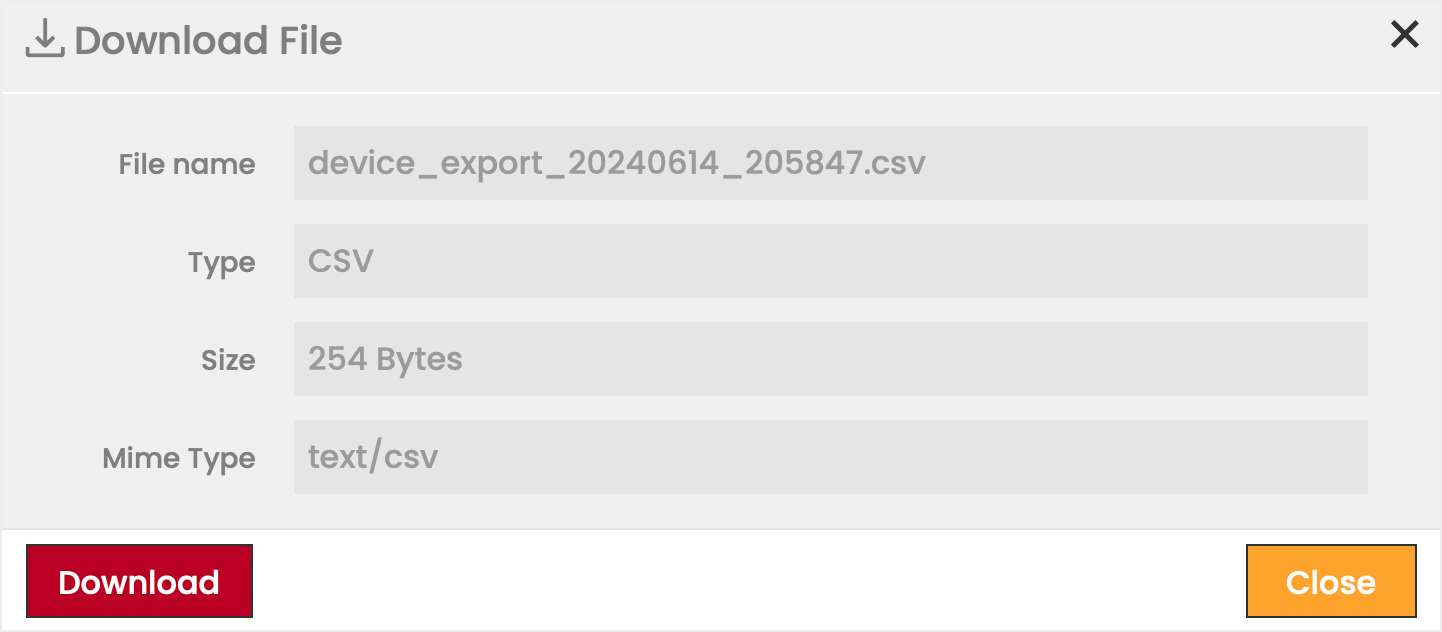
General Description - Device Export fields
Field | Description | Field | Description |
|---|---|---|---|
Serial Number | Unique numerical identifier of the Device assigned by the Producer. | Purchasing Date | Date the Device was purchased. |
Name | Name assigned to the Device. | Installation Date | Date of installation at a physical location. |
Internal Number | Unique identifier of the Device assigned by the Company for internal usage. | Activation Date | Date of first operation with an active SIM Card. |
Organization | Account to which the device is assigned. | Current Book Value | Purchasing Price minus accumulated depreciation. |
Type | Device type selected upon creation of Device. | Purchasing Price | The original market price paid for the Device. |
Hardware | Notable hardware specifics can be recorded (e.g version number). | Planned Lifetime | Expected timeframe for use and subsequent replacement. |
Producer | Manufacturer of the Device. | Location Key | Location Unique Key from an assigned Location. |
Distributor | Company from which the Device was purchased. | Location | Location assigned to a Device. |
Service Company | Preferred company for repairs and technical service. | Virtual Group | Virtual Groups are currently not supported. |
Add a Device
To add a Device:
- Select the Devices subtopic.
- Click on the Add icon.
- Define the information fields for the new Device.
Fields marked by a red asterisk are mandatory. - Click Create to save the Device.
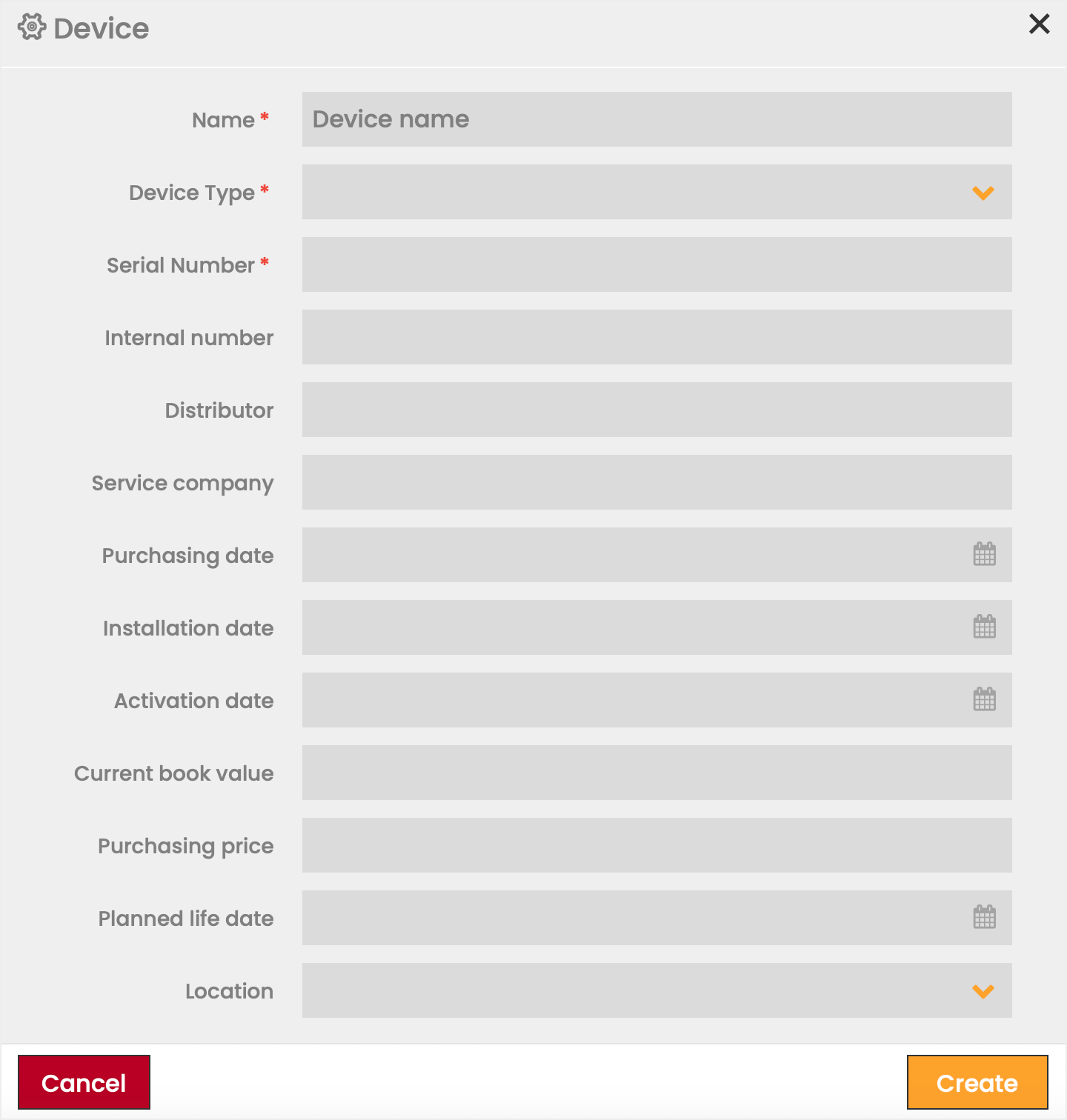
Edit or Delete a Device
- Click the Edit icon to modify the settings seen in the Device creation.
Note: The upload and export icons allow editing the details of multiple Devices at once. - Click the Delete icon to delete a Device.
Assigning SIM Card(s) to a Device
After adding a Device into the CMP, it is possible to assign one or more SIM Cards to the Device in the SIM Cards section of the Device Extended Details.
To assign SIM Card(s) to a Device:
- Select the Device to which a SIM Card is to be assigned.
- Click on the Assign SIM Cards icon in the SIM Cards split-screen.
- Search for the SIM Cards to be added.
Complete ICCID or MSISDN can be entered in the Full text field to locate a specific SIM.
The ICCID number start and end fields allow locating SIMs with the corresponding digit in their ICCID by entering one or multiple digits into the search fields. - Select one or multiple SIM Cards from the list.
- Click Choose to save your selection.
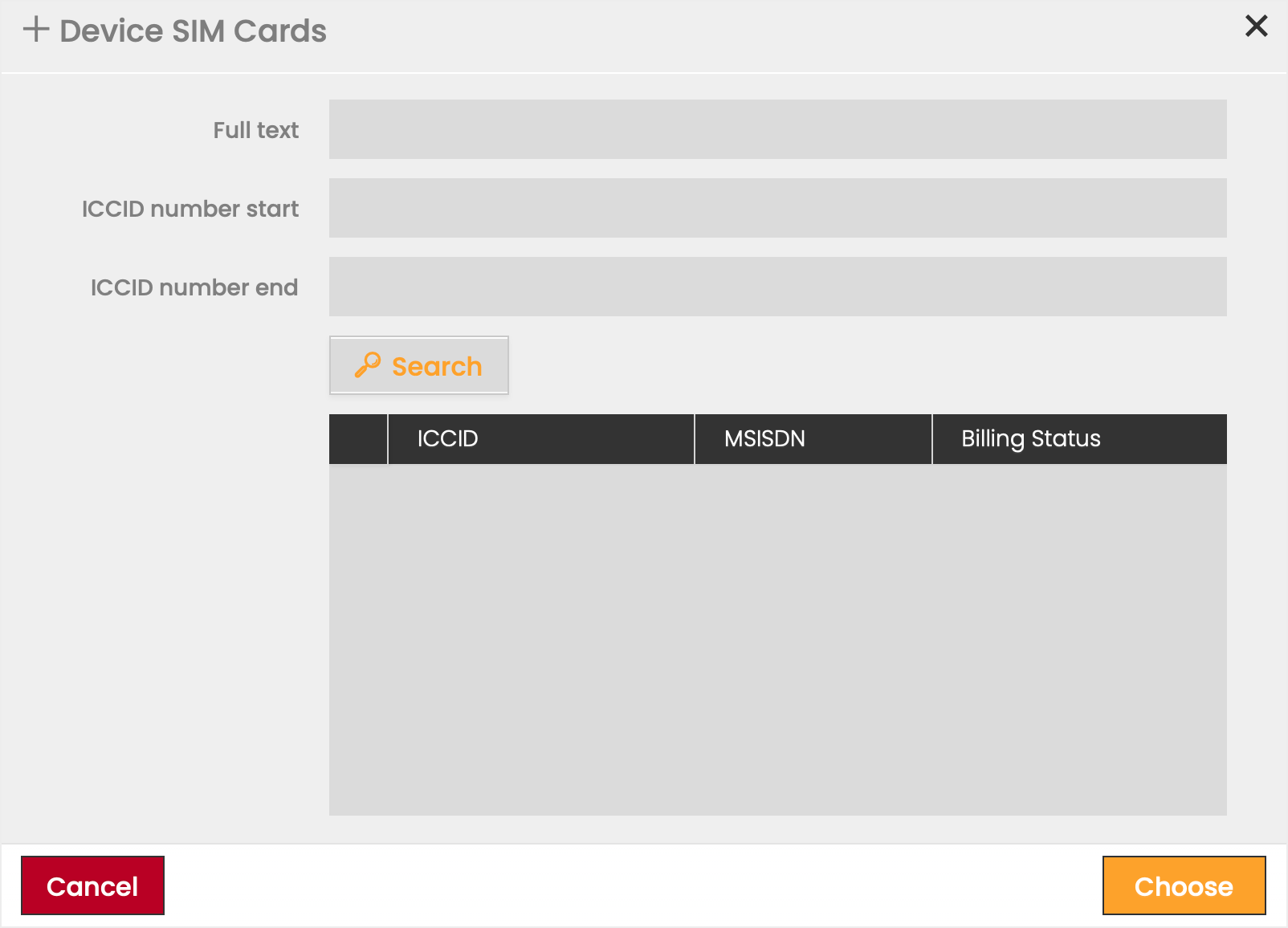
To remove SIM Cards from a Device:
- Select a Device from the Device Grid.
- Select one or multiple SIM Cards listed in the SIM Cards section.
- Click the Delete icon.
- Confirm the deletion.
Assign an IMEI Number to a Device
IMEI (International Mobile Equipment Identity) is used to uniquely identify valid Devices. IMEI Numbers can be assigned to Devices in the IMEI section of the Device Extended Details.
To assign an IMEI to a Device:
- Select a Device from the grid.
- Click on the Assign icon in the IMEI split-screen.
- Specify the Device IMEI number.
- Click Create to save the assignment.
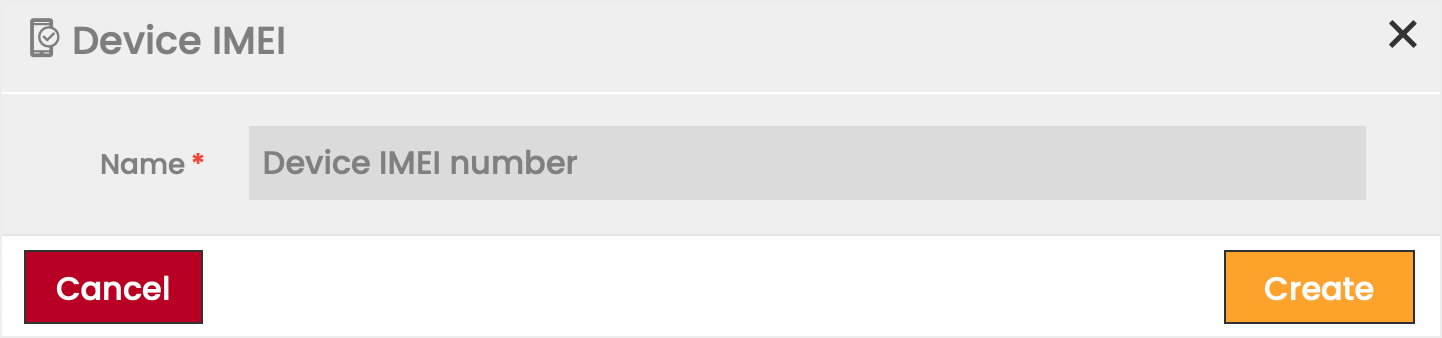
To edit or delete a Device IMEI number:
- Click the Edit icon in the IMEI split-screen to modify the settings seen in the IMEI number creation.
- Click the Delete icon in the IMEI split-screen to delete a IMEI number.
Device Location
Every IoT Device deployed by an organization operates in a specific physical location. The Enterprise Portal allows these locations to be represented within the application to assist in the management of each Device. Locations can be created and assigned to Devices in the Locations subtopic.
In the CMP system, there are two kinds of location information that can be created:
- Location: Permanent details about the real-world location in which a Device operates. Locations are assigned to Devices.
- Location Attribute: Less-permanent details that provide additional information about the Location. Location Attributes are assigned to Locations
Note:
A Location is a static definition and is not updated in real-time. Users must manually modify location details.
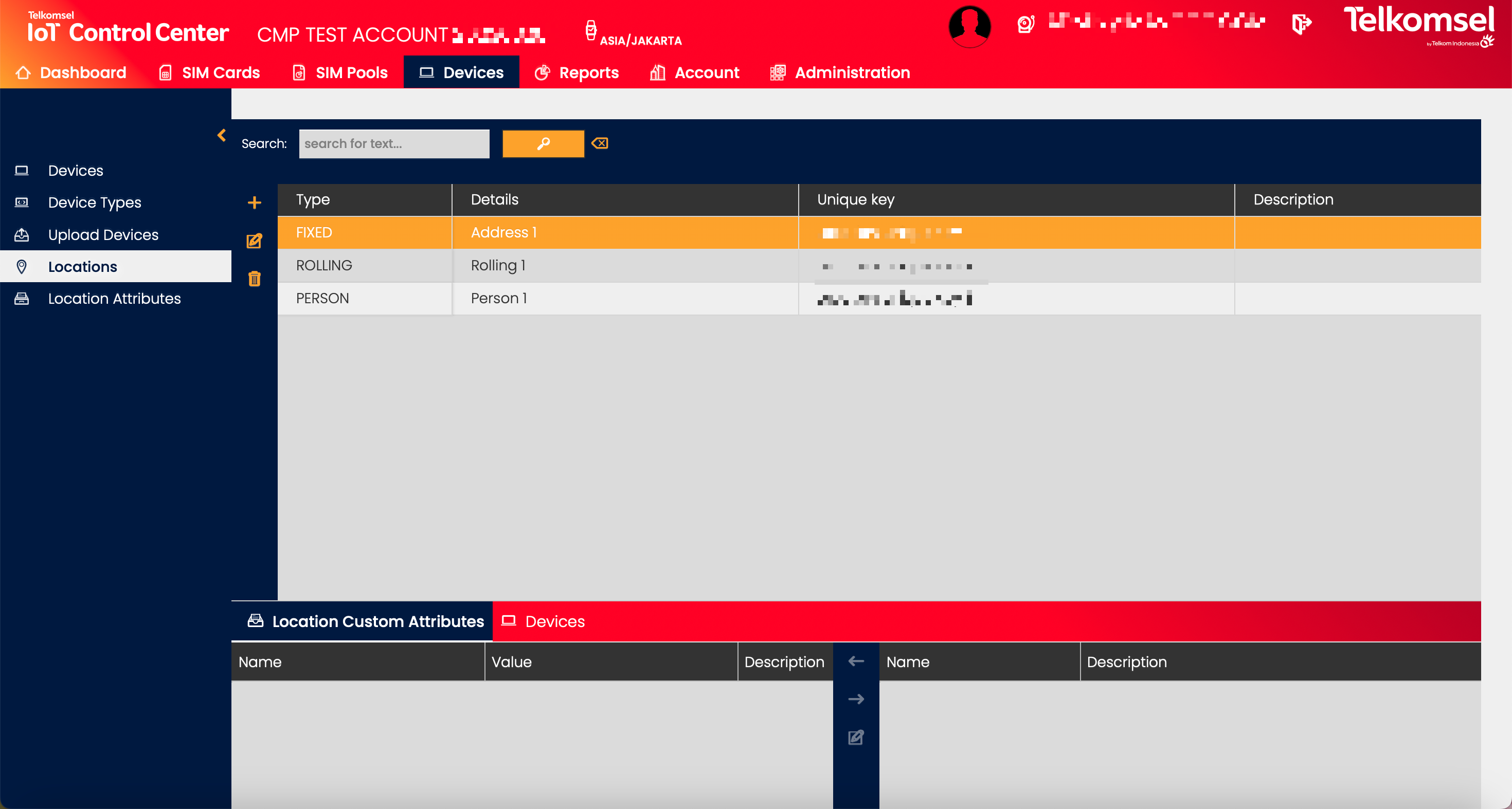
Create a Location
To create a Device Location:
- Click on the Add icon.
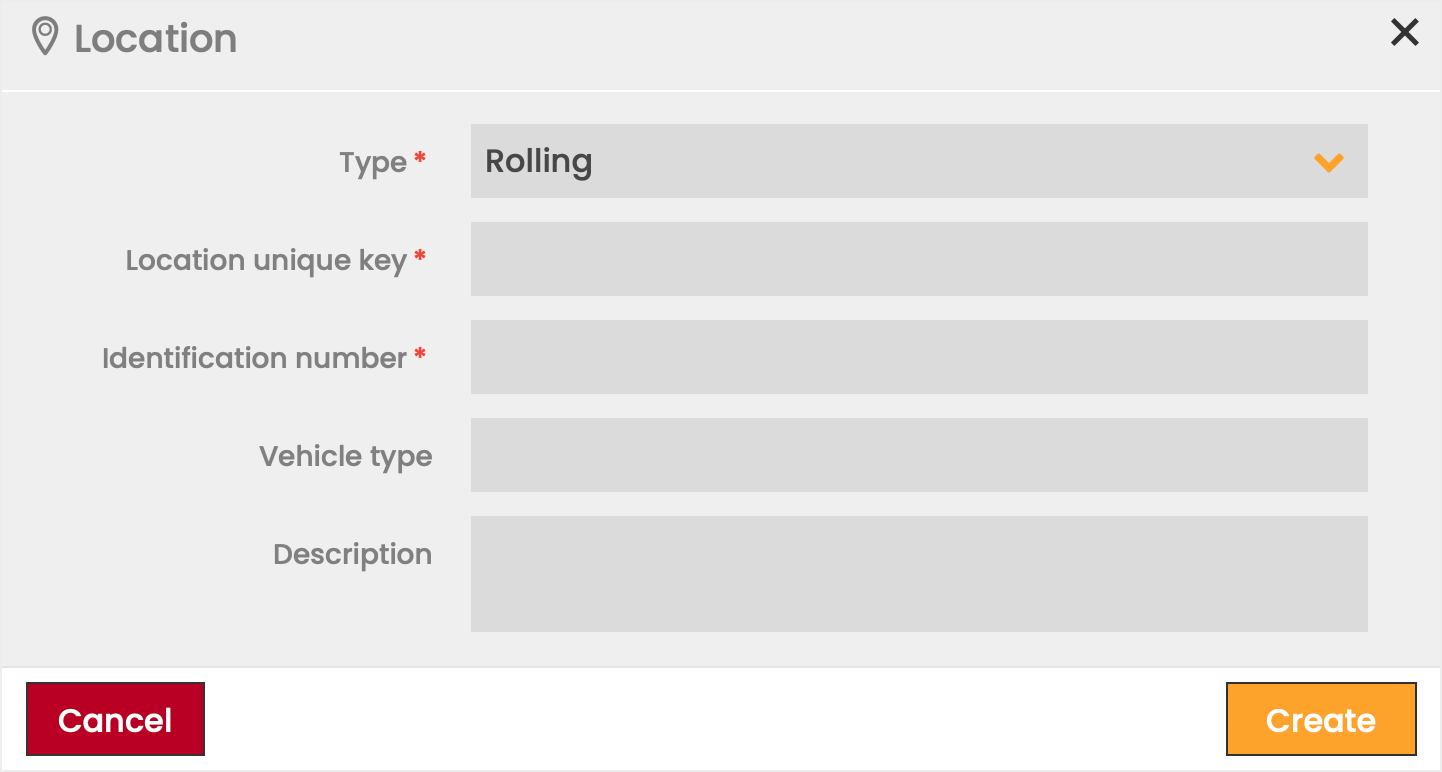
- Define the information fields for the new Location.
Fields marked by a red asterisk are mandatory. - Click Create to save the Location.
Location Types | Description | Example |
|---|---|---|
Fixed | Devices that are pertinently installed or remain within a limited area. | Utility Meter, Industrial Robotics, Smart-Home Products, Weather Monitor, Camera, Healthcare Diagnostics |
Rolling | Devices that operate in transit across larger geographic areas. | Delivery Truck, Cargo Ship, Bicycle/Scooter Sharing, Taxi, Public Transport: Bus/Train |
Person | A Device carried and operated by a specific Person. | Mobile Phone, Health/Fitness Wearable, Personal Location Tracking |
Change a Device Location
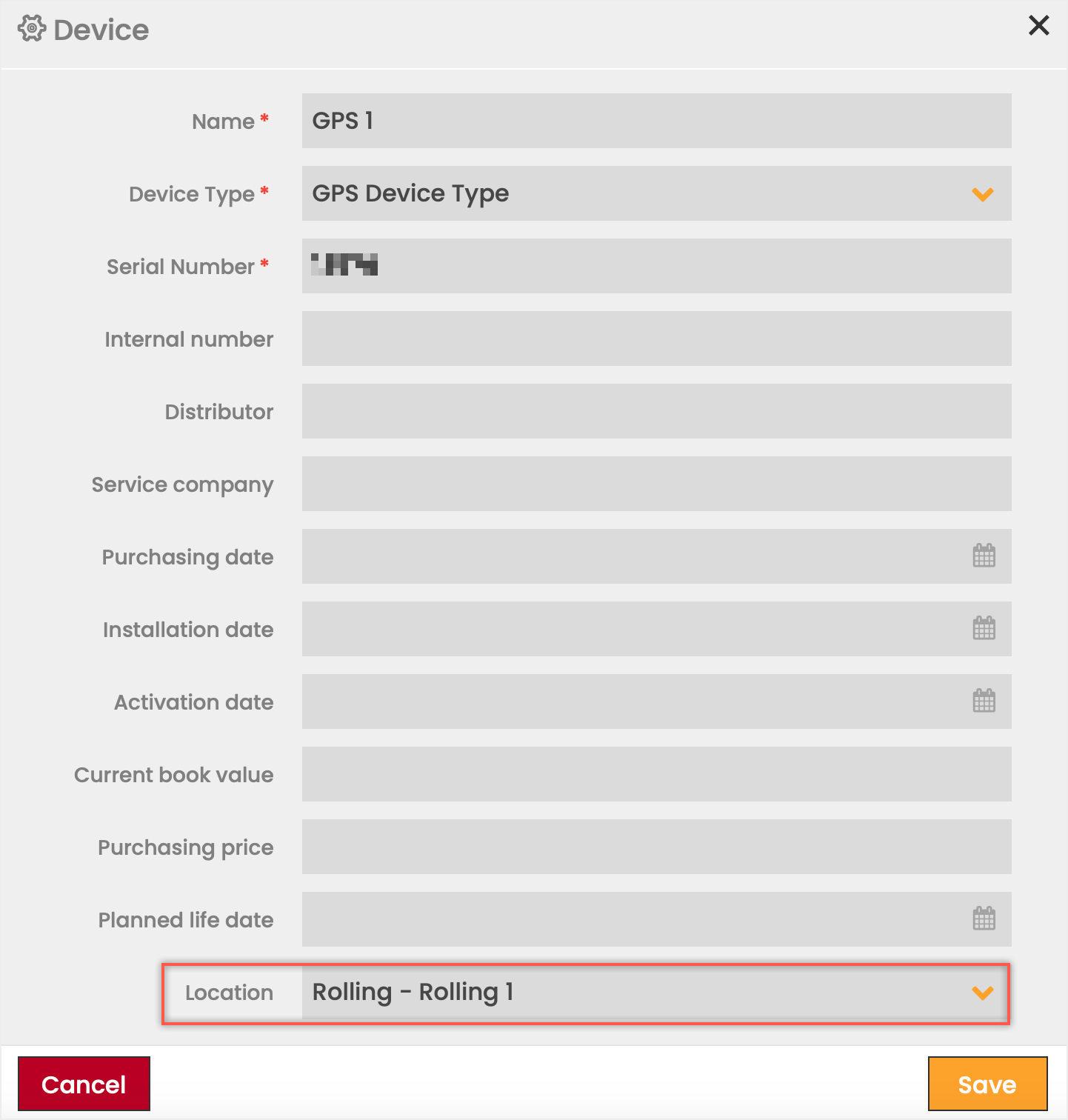
Users must manually modify Location details in the case of changes because a Location is static and not updated in real-time.
To update the Location of a Device:
- Select the Device in the Device Grid for which you want to update the Location information.
- Click on the Edit icon.
- Update the Device Location in the Device dialog box.
- Click the Save to apply the changes.
Location Attributes
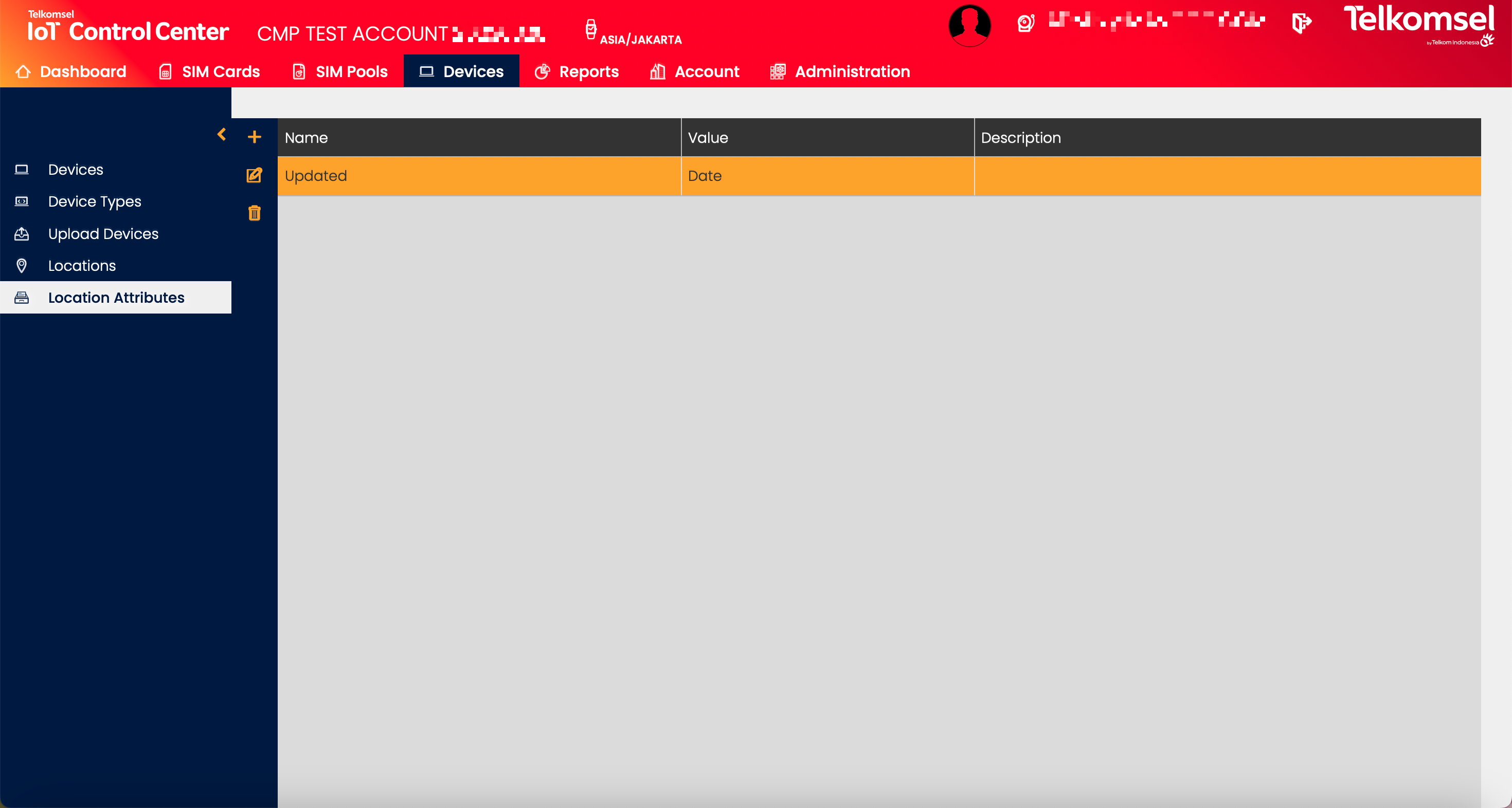
The Location Attributes subtopic allows Users to create attributes for the Locations.
Create a Location Custom Attribute
To create a Location Attribute:
- Click on the Add icon.
- Specify the Attribute details.
- Click the Create to save the Attribute.
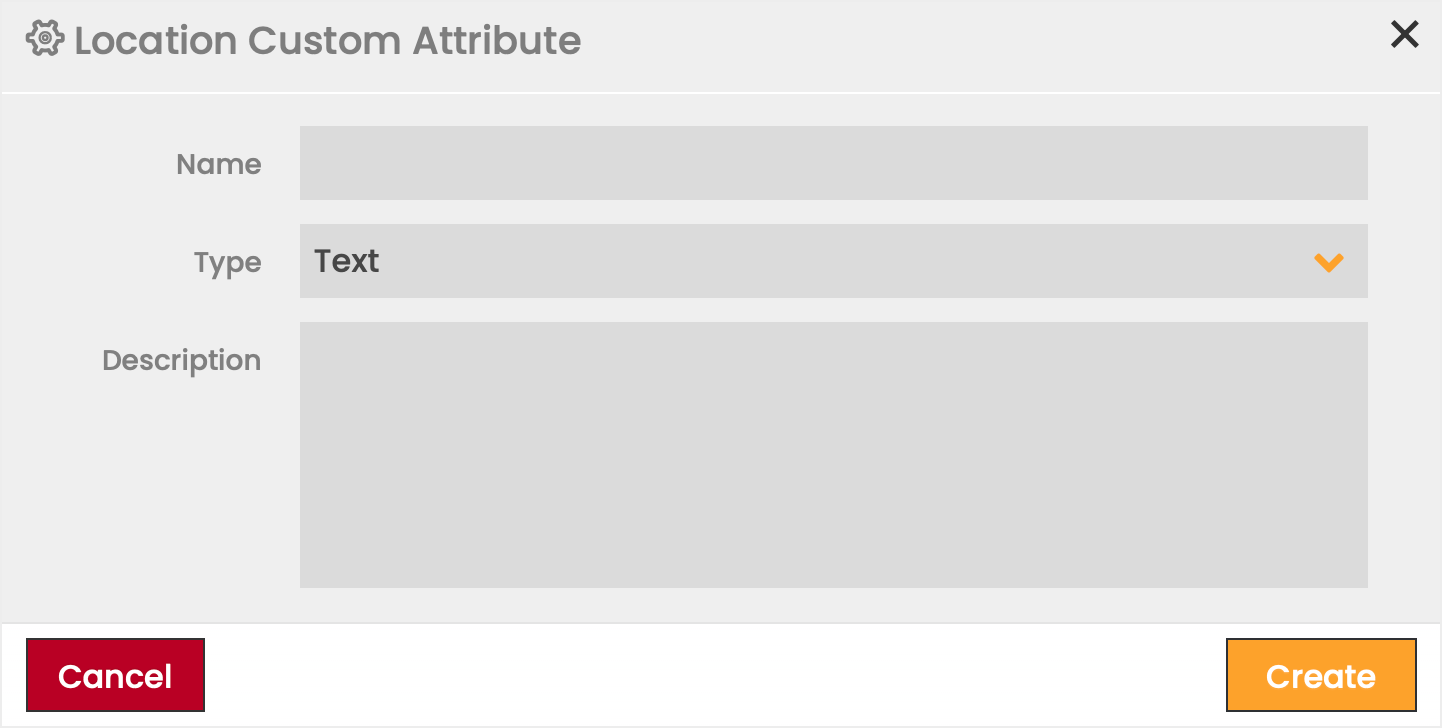
To edit or delete a Location Attribute:
- Click the Edit icon to modify the settings seen in the Location Attribute creation.
- Click the Delete icon to delete a Location Attribute.
Assign Attributes to a Location
After defining the Location Custom Attribute, it is possible to assign these attributes to a specific Device Location. Location Attributes can be assigned to Device Locations in the Location Custom Attributes section of the Location Extended Details.

To assign Location Attributes to a specific Location:
- Select a Location in the Locations grid.
- Select a Custom Attribute in the right column of the Location Custom Attributes section.
- Click the Assign
 icon to assign the attribute to the selected Location.
 - Define the value of the attribute.
- Click Create to confirm.
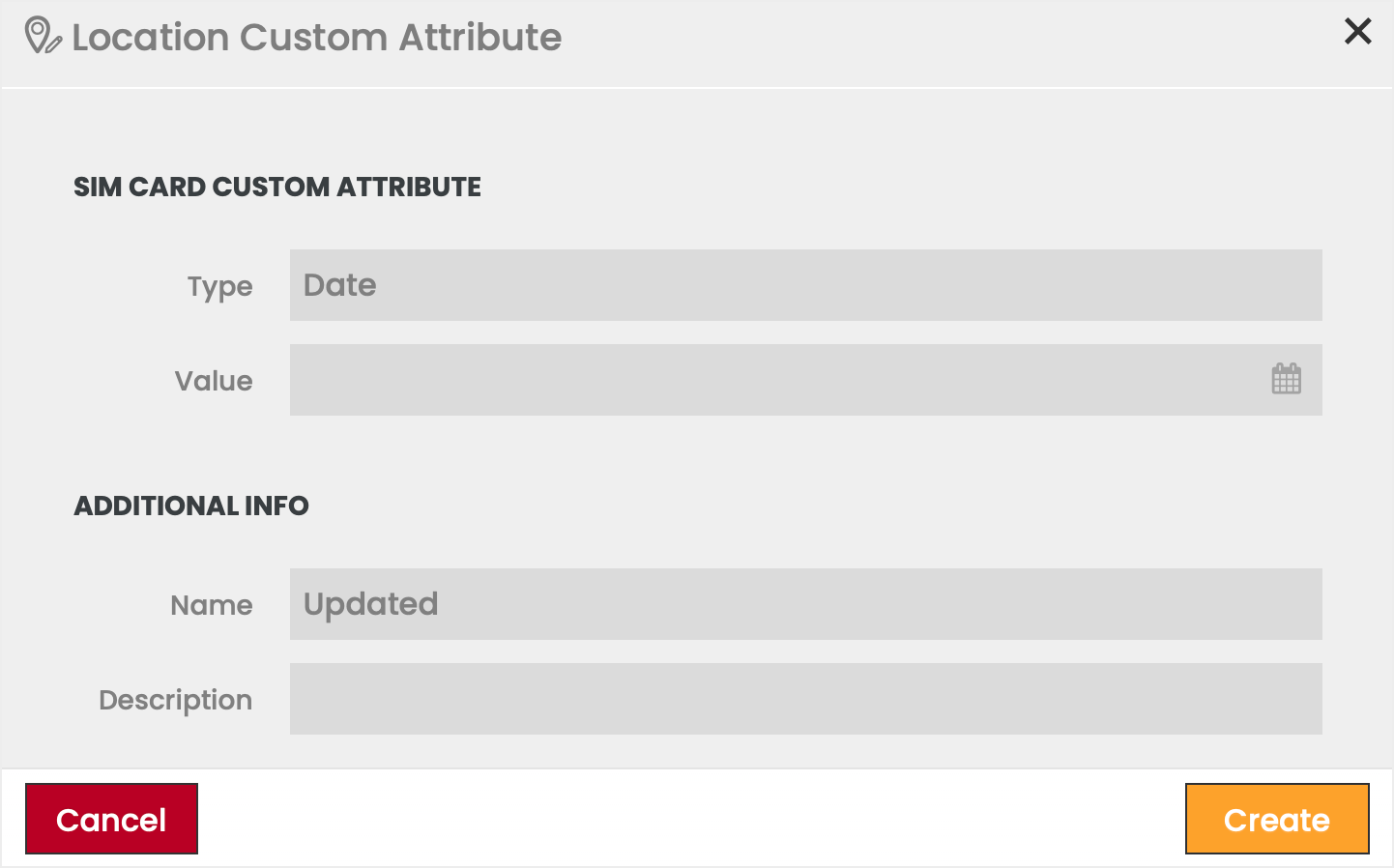
To remove a Location Attribute:
- Select a Custom Attribute in the left column of the Location Custom Attributes section.
- Click on the Remove
 icon to unassign the attribute from the selected Location.
 - Confirm the action.